


In this tutorial, we show you how to display an alert box in Android. See flowing Steps :
File : res/layout/main.xml
File : MainActivity.java
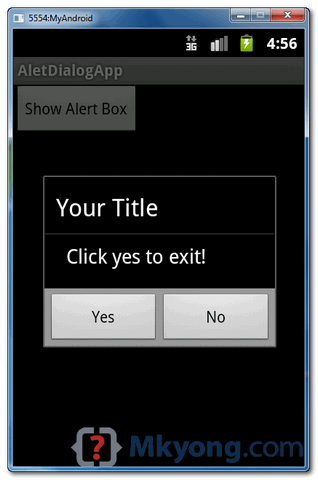
 When button is clicked, display the alert box
 If “Yes” button is clicked, close the activity and return back to your Android main screen.
- First, use the
AlertDialog.Builderto create the alert box interface, like title, message to display, buttons, and button onclick function - Later attach above builder to
AlertDialogand display it. - Done.
1 Android Layout Files
Simpel layout file, display a button on screen.File : res/layout/main.xml
<?xml version="1.0" encoding="utf-8"?>
<LinearLayout xmlns:android="http://schemas.android.com/apk/res/android"
    android:layout_width="fill_parent"
    android:layout_height="fill_parent"
    android:orientation="vertical" >

    <Button
        android:id="@+id/buttonAlert"
        android:layout_width="wrap_content"
        android:layout_height="wrap_content"
        android:text="Show Alert Box" />

</LinearLayout>
2. Activity
When user click on this button, display the alert box, with your pre-defined alert dialog interface.File : MainActivity.java
package com.mkyong.android;

import android.app.Activity;
import android.app.AlertDialog;
import android.content.Context;
import android.content.DialogInterface;
import android.os.Bundle;
import android.view.View;
import android.view.View.OnClickListener;
import android.widget.Button;

public class MainActivity extends Activity {

 final Context context = this;
 private Button button;

 public void onCreate(Bundle savedInstanceState) {

  super.onCreate(savedInstanceState);
  setContentView(R.layout.main);

  button = (Button) findViewById(R.id.buttonAlert);

  // add button listener
  button.setOnClickListener(new OnClickListener() {

  @Override
  public void onClick(View arg0) {

   AlertDialog.Builder alertDialogBuilder = new AlertDialog.Builder(
    context);

   // set title
   alertDialogBuilder.setTitle("Your Title");

   // set dialog message
   alertDialogBuilder
    .setMessage("Click yes to exit!")
    .setCancelable(false)
    .setPositiveButton("Yes",new DialogInterface.OnClickListener() {
     public void onClick(DialogInterface dialog,int id) {
      // if this button is clicked, close
      // current activity
      MainActivity.this.finish();
     }
      })
    .setNegativeButton("No",new DialogInterface.OnClickListener() {
     public void onClick(DialogInterface dialog,int id) {
      // if this button is clicked, just close
      // the dialog box and do nothing
      dialog.cancel();
     }
    });

    // create alert dialog
    AlertDialog alertDialog = alertDialogBuilder.create();

    // show it
    alertDialog.show();
   }
  });
 }
}
3. Demo
Start it, display a button.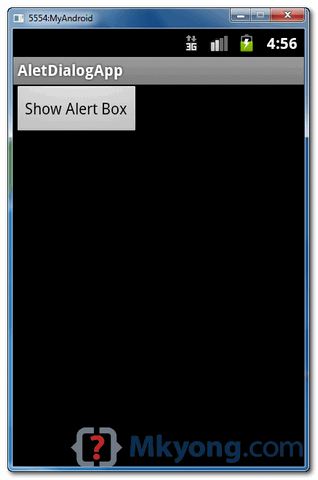
How to add more home screens in Android 4.4 KitKat
The launcher — the app that controls how your home screens look and act — arguably is the most important part of an Android smartphone. And from the earliest devices, we've seen manufacturers and app developers diverge from Google's solution and roll their own interpretations. (To varying degrees of success, for sure.)
In Android 4.4 KitKat, Google changed things up once more adding a couple of simple but much-needed features — the ability to add home screens, and the ability to rearrange your home screens.
Oh, Google Now is still attached to the far left — that's not going anywhere anytime soon, probably. But these new additions are welcomed, and easy to get used to.
We've got your primer videos after the break.
KitKat makes it easier to swap or uninstall custom launchers
Many of us enjoy using custom home screen launchers on our Android phones, but the process of switching between them has never been entirely foolproof. That's changed in the latest Android 4.4 KitKat, which introduces a new top-level menu in the Settings app allowing you to select your default launcher. That means you don't have to traipse into the Apps menu, find your custom launcher, then clear its defaults to change back. The new Home menu also gives you an easy way to uninstall custom launchers, by pressing the trash icon next to it.Check out our video above for a quick walkthrough on the Nexus 5.